


Automating EV SSL Yubikey Multiple Pin Prompts
Rated (5.0 of 5.0) by 2 reviewers.
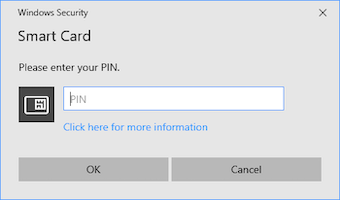
We use an EV codesign certificate to sign our software on Windows. The EV codesign certificate from SSL.com is on a Yubikey usb and requires me to enter a PIN into a Windows Security smart card prompt every time I want to sign something. That is great in theory, because I don't want someone nefarious to be able to use our codesign certificate to do bad things in our name.
In practice however, I have to enter the PIN six times over the course of several minutes while building one of our installers in Advanced Installer. (And six is very very low in comparison to what some other builds would entail!) That means sitting here and watching the boring build... copy and pasting a handful of times.
(As a bonus, if I'm too slow entering the PIN, one of the Advanced Installer build temp files gets locked somehow and I have to reboot the PC. That's a mystery for another blog post someday. But it is yet another reason that I have to sit here and actively monitor the build to enter the PIN fairly quickly. Ugh.)
So, like any frustrated software developer, I spent my Saturday afternoon seeing if there's any way to automate my way out of this frustration. Here's the abbreviated version of my research and finally my solution.
-
First I looked in to the installer build settings. Advanced Installer unfortunately does not have any way to save the PIN in the project file. (It does allow for hooking up to Azure Key Vault. But, I don't want to store any of this to an online account, nor do I know if I even could.)
-
Next I turned to Windows Security settings itself, and learned that there is no hope of caching the PIN in Windows 10 or 11 because it was patched out of windows 10.
-
In Windows 10 and 11, it's now at the discretion of the smart card driver manufacturer to decide the PIN caching policy. Yubikey itself has ways to configure this when you're making the card, but the SSL.com Yubikey smart card we get for our EV codesign key is set to require the PIN every time.
-
This person on Reddit was kind enough to do the heavy lifting of seeing if there's any way to adjust the Yubikey settings from the card SSL.com sent us. Spoiler alert: there's not. But, that Reddit post also inspired me to figure out how to use AutoHotkey to help me enter the PIN.
-
This thread helped me learn how to write a little AutoHotkey script to check for a Windows Security window popping up, then I added the line to put in the pin/enter by reading the AutoHotkey help documents.
-
I originally wrote this blog post in 2022, and I've had to update my AutoHotkey script a few times. Notably I had to do a big update when the assumptions about window id ordering massively changed because of window ids being reused a lot more in Windows 11 (or alternatively said, because of very brittle assumptions I made about window id order in the past!)
So, in the end, here's my slapped-together AutoHotkey script to check for new Windows Security pop-up windows, type in the PIN, and press enter.
#NoEnv
#SingleInstance Force
SendMode Input
SetWorkingDir %A_ScriptDir%
#Persistent

; Force the script to restart itself as Admin if it isn't already so we can look at active windows
if not A_IsAdmin
{
   Run *RunAs "%A_ScriptDir%\%A_ScriptName%"
   ExitApp
}

; Run the check every 500 milliseconds (2 times a second)
SetTimer, CheckForSecurityWindow, 500
return

CheckForSecurityWindow:
    ; Check if a window with Windows Security as the title exists AND is currently active
    IfWinActive, Windows Security
    {
        ; Check for the word "PIN" inside the window so I don't enter a PIN
        ; into the wrong "Windows Security" window (like the settings menu).
        ; WinGetText, winText, A
        ; IfInString, winText, PIN
        ; {
            Send, YOUR_PIN_HERE{Enter}

            ; Wait for this window to close or lose focus
            ; so we don't type the PIN again into the same window.
            WinWaitNotActive, Windows Security
        ; }
    }
Return
With AutoHotkey installed, you run the script by double-clicking it. You can quit the script by right-clicking it in your dock and selecting to quit. When I'm making installer builds, I run a bash script, so I've added two lines before and after my Advanced Installer command to start the AutoHotkey script and then stop all AutoHotkey scripts. (I'm lazy, and this is the only AutoHotkey script I use.)
To start the script:
Start "" /b "c:\program files\autohotkey\autohotkey.exe" "your_script.ahk"
To shut down all of the scripts:
taskkill /IM autohotkey.exe /F
Aside: It wouldn't surprise me if SSL.com corrects their Yubikey setup in the future allowing for PIN caching. All of my interactions with their customer service, including the validation to getting our EV codesign certificate, have gone really smoothly (And that is saying a lot. Extended validation is usually a bit of a pain for small businesses.) Their price point and customer service have been top notch every time I've interacted with them, so I would recommend them.
You may have noticed that our links to SSL.com in this article are affiliate links — we may earn a small commission for those links.
You may have noticed that our links to parallels.com in this article are affiliate links — we may earn a small commission for those links.
Our primary business is making our Decipher Tools software and solving iPhone problems, but occasionally while writing a tutorial, we find a solution that involves recommending buying an item, like a cable or case. We take external product recommendations very seriously, and we only link to products that we have actually tested ourselves.